

Yes, you can schedule Instagram Stories, but not in the Instagram app itself. You need an Instagram Business or Creator account and either Meta Business Suite (free) or a scheduling tool like Sendible. Image and video Stories publish automatically. Link, poll and music stickers can't be auto-published by any tool, so you add those in the app when a reminder arrives.
This guide shows you how to schedule Instagram Stories with Sendible step by step, how to do it for free in Meta Business Suite, what Instagram won't let any tool auto-publish, and when brands actually schedule their Stories, based on Sendible's own 2026 data.
How to schedule Instagram Stories in Sendible
Before you start, make sure your Instagram account is a Business or Creator account. Instagram doesn't allow any tool to publish to personal accounts.
1. Connect your Instagram account
Log in to Sendible and connect your Instagram Business or Creator account under Profiles. Agencies can send clients a secure link to connect their own accounts, without sharing passwords.
2. Open the Compose Box and choose Story
Open the Compose Box, select your Instagram profile, and switch the Instagram post type from Post or Reel to Story.
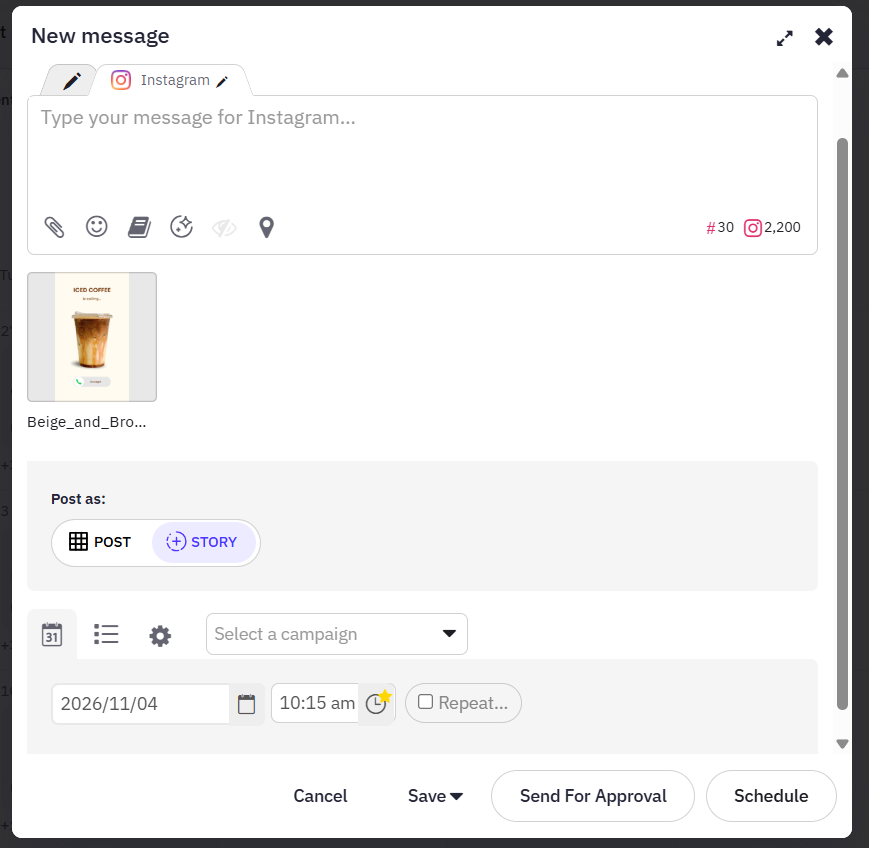
3. Add and design your Story
Upload a vertical image or video, or design one with the Canva integration or Sendible's built-in image editor (crop, filters, text and shapes). Put any text or branding into the design itself, since stickers are added separately.
4. Pick a date and time
Choose when the Story should go live, or use optimal time suggestions to post when your audience is most active.
5. Send for approval (optional)
Working with clients or a team? Route the Story through an approval workflow so the right person signs off before it's scheduled.
6. Schedule it
Click Schedule. Sendible publishes the Story automatically at the time you set, and it appears on your content calendar alongside the rest of your posts.
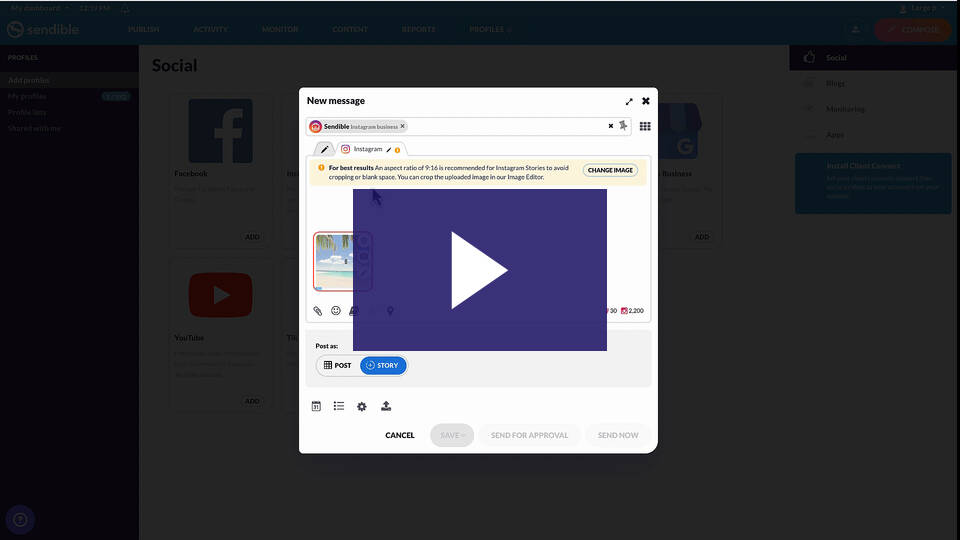
Prefer video? Here's the full walkthrough:
What you can and can't auto-publish in Instagram Stories
Every scheduling tool, including Meta Business Suite, publishes through Instagram's API. Meta's API documentation confirms that publishing link, poll and location stickers isn't supported, so no tool can auto-publish a Story with them. Here's what that means in practice:
How to schedule Instagram Stories with stickers, links and music
For Stories that need a link sticker, poll, quiz or music, use Sendible's Instagram Reminders. You still plan and approve the Story in Sendible, but instead of auto-publishing, you get a notification at the scheduled time so you can post it from the Instagram app and add the sticker there.
- Add an Instagram Reminder profile (one-time setup).
- Create your Story in the Compose Box and schedule it to the Reminder profile.
- At the scheduled time, you get a notification email with your Story ready to go.
- Open Instagram, upload the Story, add your link, poll or music sticker, and post.
Most Stories don't need it. In Sendible's own data, only about 1 in 100 scheduled Stories went out by reminder:
How to schedule Instagram Stories for free with Meta Business Suite
If you only manage one brand on Facebook and Instagram, Meta Business Suite is a free option. It works on desktop at business.facebook.com and in the Meta Business Suite mobile app.
- Link your Instagram professional account to your Facebook Page and open Meta Business Suite.
- Click Create story (or go to Planner and choose a time slot).
- Select your Instagram account and upload your image or video.
- Click the arrow next to Share story and choose Schedule.
- Pick your date and time, then click Schedule.
The same sticker limits apply. Stories scheduled in Meta Business Suite won't include link, poll or music stickers.
Plan your Instagram Stories on a calendar
Stories work best as part of a plan, not a last-minute post. Scheduling them on a calendar lets you see your Stories next to your feed posts, Reels and other channels, so launches, promotions and evergreen content don't clash or go quiet.
- See everything in one view. Sendible's content calendar shows scheduled Stories alongside posts and Reels across every connected profile, and you can drag and drop to reschedule.
- Batch a week at a time. Most teams schedule Stories on weekdays: in our 2026 data, Friday was the busiest day and late morning the busiest time. Block an hour on Monday to plan the week.
- Plan around key dates. Sendible's calendar includes hundreds of social media holidays to plan Stories around.
- Bulk-schedule the rest. Use the Bulk Importer to upload a month of posts from a CSV file.
Need a template to start from? Here's how to create a social media calendar in 5 steps.

Which method should you use?
| Instagram app | Meta Business Suite | Sendible | |
|---|---|---|---|
| Schedule Stories | No | Yes | Yes |
| Cost | Free | Free | Paid, 14-day free trial |
| Stickers, links, music | Yes, when posting live | Not auto-published | Via Instagram Reminders |
| Other networks | Instagram only | Facebook and Instagram | All major networks, incl. LinkedIn, TikTok, Threads, Google Business Profile |
| Approvals and teams | No | Basic roles | Approval workflows, unlimited users |
| Best for | Posting live | One brand, Facebook and Instagram only | Agencies, teams and multi-location brands |
For a single brand that only posts to Facebook and Instagram, Meta Business Suite is enough. If you manage multiple clients or locations, need approvals, or post to more than two networks, a tool like Sendible saves the most time.
3 Instagram Story ideas to schedule this week
1. Behind the scenes
Share a short sequence from your office, a shoot or a product launch. Gather the photos or clips in one go, send them for approval, and schedule them across the week. Want a poll on the last frame? Schedule that one as a reminder.
2. Event highlights
Capture content during an event, then schedule highlights one at a time over the following days to build anticipation for the next one. Save the best to a Highlight on your profile.
3. Repurposed feed posts and Reels
Resize your best-performing posts and Reels to 9:16 in Canva and schedule them as Stories to drive people back to the full post. To share someone else's post, see how to repost Stories and feed posts.
For consistent branding, build a set of Instagram Stories templates and check your Instagram Story insights to see which ideas to repeat.
Instagram Story scheduling FAQs
Can you schedule Instagram Stories in the Instagram app?
No. The Instagram app doesn't have a Story scheduler. You need Meta Business Suite (free) or a third-party scheduling tool such as Sendible, and an Instagram Business or Creator account.
Can you schedule an Instagram Story with a link sticker?
Not fully automatically. Instagram's API doesn't allow tools to publish link, poll or location stickers. Schedule the Story as a reminder instead: you get a notification at the set time, then add the link sticker in the Instagram app and post.
Can you schedule Instagram Stories with music?
No tool can auto-publish Stories with Instagram's music stickers. Either add music in the app when your reminder arrives, or use a video that already includes licensed audio.
Can you schedule Instagram Stories for free?
Yes. Meta Business Suite lets you schedule Instagram Stories for free from desktop or its mobile app. It covers Facebook and Instagram only and has no approval workflows.
Can you schedule Stories on a personal Instagram account?
No. Instagram only allows scheduling for Business and Creator accounts. You can switch a personal account to a professional account for free in your Instagram settings.
When do most brands post Instagram Stories?
In Sendible's 2026 data, Friday was the most popular day to schedule Stories and 11am the busiest hour, with close to half going out between 8am and noon. Your own audience may differ, so check your Instagram insights and the best time to post on Instagram.
Try Sendible free with 14-day free trial.
Leverage Sendible’s extensive integrations to create, schedule, publish, and engage with your posts seamlessly.

Text copied!