

To share a YouTube video at a specific time, pause where you want it to start, then: on desktop, right-click the video and choose Copy video URL at current time; on iPhone or Android, tap Share and turn on the timestamp toggle. You can also add ?t= plus the time to the end of any YouTube link, for example youtu.be/abc123?t=90.
Timestamp links take viewers straight to the part of a video that matters, such as a product demo, a key quote or the answer to a question, so they don't have to scrub through the whole thing. For social media managers, that means more relevant clicks from posts, comments and newsletters.
YouTube changed how this works on mobile in April 2026. It added a built-in timestamp option to the mobile Share menu and stopped new Clips from being created. This guide covers the new method, the manual link format that still works everywhere, and how timestamps power chapters and Key Moments in Google and AI search.
YouTube timestamp cheat sheet
| Category | Details |
|---|---|
| Short link format | youtu.be/abc123?t= |
| Long link format | youtube.com/watch?v=abc123&t= |
| Timestamp formats | 45s / 1m45s / 1h3m30s (or seconds only: 90) |
| Desktop (right-click) | Pause → right-click → Copy video URL at current time |
| Desktop (Share button) | Share → tick Start at → copy link |
| Mobile (iPhone & Android) | Pause → Share → turn on timestamp toggle → copy link |
| Mobile (manual fallback) | Share → Copy link → add ?t=45s yourself |
| Timestamp in comments | Type 1:45 directly. YouTube turns it into a link automatically |
| Chapters (minimum) | At least 3 timestamps, each 10+ seconds long |
| Chapters start point | 0:00 is required for chapters to show |
| End time | Not supported. Links start at a point and play on |
What is the exact YouTube timestamp format?
A timestamp link only works if the URL is structured correctly. This is where most issues happen, especially when links are copied from different devices or shared across multiple platforms. The format itself isn’t complicated. It’s just a matter of knowing which part of the link controls the “start time.”
Short Links vs. Long Links for Key Moments jumps
You’ll typically see YouTube links in two styles:
- Short links (youtu.be/abc123): Used when you copy a link from the YouTube “Share” button.
- Long links (youtube.com/watch?v=abc123): Used when you copy the URL directly from the browser.
The main thing for creators to remember is this:
- Short links add a timestamp with ?t=
- Long links add it with &t=
That’s the only difference.
All you’re doing is adding the timestamp in the correct shape so YouTube can recognise it.
Once you click the stamp, the YouTube video will start at a specific time, giving viewers an instant jump to the exact moment you want to highlight.
How to Create a YouTube Channel as a Brand
How to create YouTube timestamps
Creating a timestamp link is straightforward once you know where to look. Most social media managers only need two workflows: the quick desktop method and the manual mobile method.
Both achieve the same result, but the steps differ slightly depending on where you’re grabbing the link.
Desktop browser method: The fastest way
On a desktop, YouTube gives you two built-in options that generate timestamp links automatically:
Method #1: Right-click method
- Play the video and pause at the exact moment you want to share.
- Right-click on the video.
- Select Copy video URL at current time.
- Paste the link into your post or scheduling tool (the timestamp is already included).
Method #2: Share button
- Click the Share button under the video.
- Tick Start at and confirm the time is correct.
- Copy the generated link and use it in your post.
This method produces a short youtu.be link, which uses the ?t= format.
If you need inspiration for chapter titles, your Instagram marketing content could be useful for YouTube ideas and cross-platform navigation.
How to share a YouTube link at a timestamp on iPhone and Android
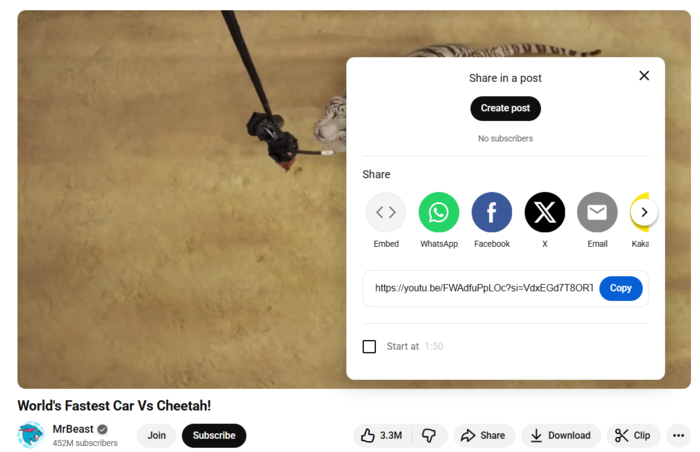
Since April 2026, the YouTube app on iPhone, iPad and Android has a built-in option for sharing a video from a specific moment. You no longer have to edit the link by hand.
Method #1: Use the timestamp toggle in the Share menu (new)
- Play the video and pause at the moment you want viewers to land on.
- Tap Share under the video.
- In the share menu, turn on the timestamp toggle in the top-right corner. It shows the current time, e.g. 2:30.
- Copy the link, or share it straight to an app. The link now starts playback from that point.
Method #2: Add the timestamp manually (fallback)
The manual method still works. Use it if your app hasn't updated yet, or if you're editing a link that's already in a draft post, a newsletter or your scheduling tool.
- Tap Share, then Copy link.
- Paste the link into your draft post or notes app.
- Add the timestamp to the end:
- Short link:
?t=45s - Long link:
&t=45s
- Short link:
Example: youtu.be/abc123?t=90 takes viewers 1 minute 30 seconds into the video.
How to timestamp YouTube comments
You can create a YouTube timestamp comment, too. When you type a time format like 1:45 in a comment, YouTube automatically converts it to a clickable timestamp.
This is useful when you want to highlight key moments for your audience, pin important sections, or give viewers a quick entry point into longer videos.
What happened to YouTube Clips?
On 17 April 2026, YouTube stopped new Clips from being created. Clips let viewers cut and share a 5–60 second section of a video. They're replaced by the timestamp toggle in the mobile Share menu.
What this means in practice:
- Existing Clips still work. Links to Clips made before the change stay viewable.
- You can't set an end time any more. A timestamp link starts at a chosen moment and plays on from there. It doesn't stop at a set point.
- You can't add a custom title or description to a shared moment. Add context in your post copy instead.
- Clipping is moving to creators. YouTube says it's focusing on clipping tools for creators, including clips for Shorts and automatic suggestions of clippable moments.
For brands, the upshot is that timestamp links, plus a strong caption, are now the main way to send people to a specific moment in a YouTube video.
Leveraging timestamps for AEO and YouTube chapters
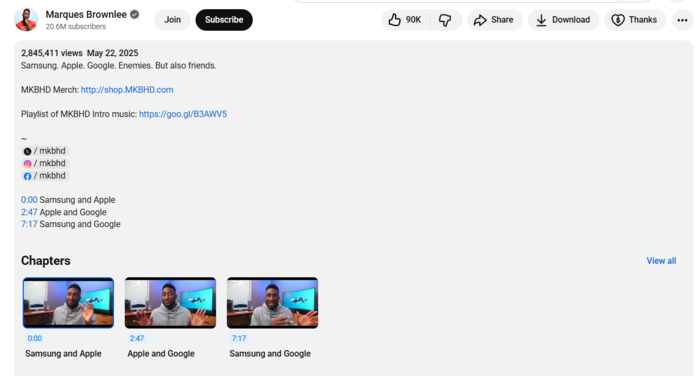
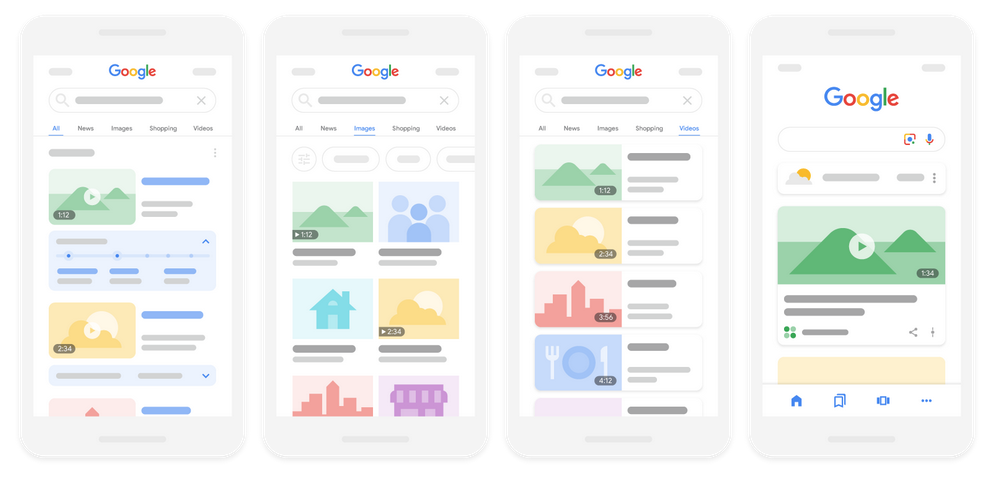
Timestamps aren’t only useful when you’re sharing a direct link. When you add them inside the video description, YouTube converts them into clickable YouTube description chapters (the horizontal navigation bar that appears directly beneath the video window).
Each chapter has its own thumbnail, timestamp, and title, giving viewers an immediate overview of the video's structure.
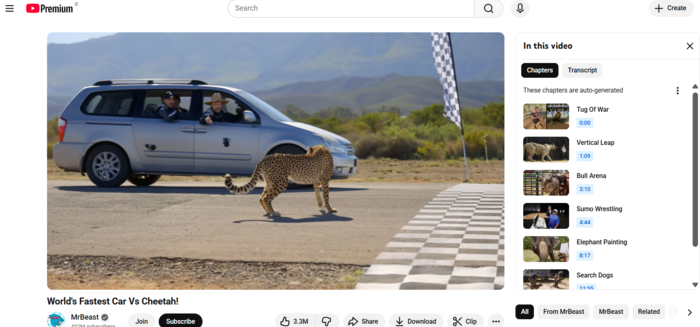
These chapters help viewers navigate long videos more easily, but they also create clear structural signals that Google and large language models (LLMs) can process.
Google’s AI Overviews (AIOs), AI Mode, and Gemini-powered search results are increasingly pulling "Key Moments" directly from timestamped descriptions. Making it easier for potential customers to find your YouTube content in their AI-generated answers.
YouTube Chapters (or Key Moments) are a built-in table of contents
They break the video into predictable sections, make key moments easier to scan, and help users jump to the part that matches their intent. When a viewer understands the shape of a video upfront, they’re far more likely to stay with it.
Key requirements for YouTube video chapters to work
YouTube only recognises chapters if they follow three rules:
- The first entry must start at 0:00.
- You need at least three timestamps in the description.
- Each timestamp must be at least 10 seconds apart.
YouTube’s algorithm won’t activate chapters unless all three core conditions are met.
How to Start a YouTube Channel: A Step-by-Step Guide
Boosting AI & LLM visibility with Chapter Tiles
Chapters become even more effective when each section has a clear, descriptive title. Use keywords that reflect what the viewer will learn or see in that moment.
LLMs rely on these titles when identifying topics, answering questions, and generating summaries, making your video easier to surface and more useful in AI-driven results.
Increasing content efficiency with video tools
Social media managers rely on timestamps when repurposing clips, linking to specific talking points, and coordinating multi-platform campaigns. The more organised the video is, the easier it becomes to manage everything around it: uploads, thumbnails, captions, assets, and platform-specific posts.
This is where Sendible's tools fit naturally into the workflow, helping you move from timestamps to chapters to full campaign planning, without switching systems or losing time.
Schedule YouTube videos and timestamps effortlessly
Once your timestamps are mapped, you can add them directly to the YouTube description field in Sendible’s scheduling workflow.
Sendible lets you upload your video, set the title, write the description, choose your tags and category, and pick the exact time it should be published.
Because YouTube sits alongside every other social profile in your Sendible dashboard, your video upload becomes part of a coordinated, multi-platform schedule.
You can line up supporting posts, plan cross-channel promotion, and keep your timing consistent across all the networks you manage. It’s a cleaner, faster way to handle YouTube publishing when you’re juggling multiple channels.
Streamline media management for YouTube assets
Sendible gives you access to a Content Library and a built-in image editor, providing a central hub for visual assets (thumbnails, chapter cards, overlays, etc.).
This saves you time by avoiding the need to search through folders or create graphics from scratch for every piece of content.
Inside the Compose Box, you can upload or update a thumbnail, make adjustments in the editor, and attach it to your YouTube upload or related social posts.
It keeps your visual assets consistent across platforms and makes it much easier for teams to work from the same set of files.
Centralise your entire video campaign
Video-led campaigns become far more manageable when everything sits inside one dashboard. You can upload the video, add your timestamped description, prepare your thumbnail, and build the supporting posts for other platforms without switching tools.
The whole campaign comes together in a single workflow, reducing friction and keeping your timing consistent across every channel. This approach is faster and clearer for teams to follow, especially useful when you’re coordinating several accounts at once.
Troubleshooting: Why are your YouTube chapter timestamps not working?
Even when the format looks correct, timestamp links and chapters can fail for a few simple reasons. Most issues come down to small formatting details, copied links with hidden parameters, or pasting a timestamp into the wrong YouTube URL format.
The good news is that almost every problem has a straightforward fix once you know what to check.
Four reasons your link or YouTube chapters could fail
#1: Missing the crucial 0:00 chapter
YouTube will not activate chapters unless the first entry in your description starts at 0:00. If this is missing, none of the timestamps will convert into chapters.
💡 A key point on this: YouTube's auto-chapters feature has become more aggressive, thanks to more AI algorithms being injected into YouTube and Google. Making sure you manually put 0:00 as the start of the first chapter is a crucial best practice to ensure SEO, GEO, and AEO accuracy.
#2: Using ?t= when the link already has parameters
If your URL already contains ?v= or other tags, you must use &t= to add the timestamp. Using ?t= again breaks the link structure.
#3: Incorrect time formatting
YouTube does not accept decimal-based timestamps. Formats like 1.5m won’t work. Use 1m30s or 90s instead.
#4: Not testing the link before publishing
Always test your timestamp in a fresh browser tab or incognito window. Cached sessions can make a broken link appear correct.
#5: The timestamp toggle isn't showing in your app.
The mobile timestamp option needs an up-to-date YouTube app. Update the app from the App Store or Google Play. In the meantime, use the manual ?t= method.
YouTube timestamp link FAQs
How do I share a YouTube video at a specific time on mobile? Pause the video at the moment you want, tap Share, and turn on the timestamp toggle in the top-right of the share menu. Then copy or share the link. This works in the YouTube app on iPhone, iPad and Android, and has been available since April 2026.
Can I still create YouTube Clips? No. YouTube stopped new Clips from being created in April 2026. Clips made before then still work. To share a specific moment, use a timestamp link instead.
Can I set an end time on a YouTube timestamp link? No. Timestamp links only set where playback starts, and the video plays on from there. If you need viewers to watch one short segment, say which part to watch in your post, or cut a short version of the video yourself.
How do I write the time in a YouTube timestamp link? Add t= followed by the time, using ? after a short youtu.be link or & after a long youtube.com/watch link. You can write the time in seconds (t=90) or in hours, minutes and seconds (t=1m30s, t=1h2m5s). Both start the video at the same point.
Why isn't my YouTube timestamp link working? The most common causes are using ?t= on a link that already has a ? in it (use &t= instead), formatting the time incorrectly, or the link being shortened or rewritten by another tool. Open the link in a private browser window before you publish to check that it starts at the right moment.
Make your videos easier to navigate, for users and algorithms
Mastering timestamp links gives your audience a smoother way to navigate long videos. When viewers can jump straight to the sections that matter, engagement improves, and watch time becomes more predictable.
These small formatting choices also help search engines and AI tools better understand your content, making every video easier to surface and share.
If you want the same clarity in your workflows, Sendible brings your uploads, assets, and multi-platform posts into one organised dashboard.
Try Sendible for free for 14 days and see the practical insights you’ll gain on video content firsthand.

Try Sendible free with 14-day free trial.
Leverage Sendible’s extensive integrations to create, schedule, publish, and engage with your posts seamlessly.

Text copied!