

If someone lands on your Instagram profile today, would they see your best content or just your latest Story?
Instagram Highlights give you a way to put your strongest Stories right at the top of your profile, even before pinned posts.
Highlights on Instagram help visitors quickly understand who you are, what you offer, and why they should stick around, if your strategy hits the mark.
In this guide, we show you how to use Highlights strategically so your profile starts working the second a potential follower, fan, or customer lands on your profile.
TL;DR: Instagram Highlights
- Instagram Highlights are more important now than ever: 40% of users now visit a brand's Highlights before scrolling through the main grid to find more about a company.
- In many ways, this makes Profile Optimisation the new landing page strategy (DataReportal 2026).
- Making Highlights a key part of how to use Instagram for business. Start with a social media audit before using new formats, like Highlights, so you know how to use them more effectively.
- Use Highlights strategically to showcase products, FAQs, testimonials, and behind-the-scenes content. Turn your profile into a visual menu for new visitors.
- Custom cover designs, regular content updates, and smart categorisation (aim for 5–8 Highlights) keep your profile looking professional and easy to navigate.
- Workflow shortcut: You can add content to Highlights without it appearing publicly in your Story feed by posting to a Close Friends list containing only yourself.
What are Instagram Highlights?
Unlike regular Stories that disappear after 24 hours, Highlights remain visible indefinitely, allowing brands and creators to showcase their best evergreen content to profile visitors.
Unlike regular Instagram Stories, which disappear after 24 hours, Highlights stay pinned to your profile until you remove them.
This makes them one of your most valuable tools for showcasing evergreen or strategic content directly to visitors who land on your page.
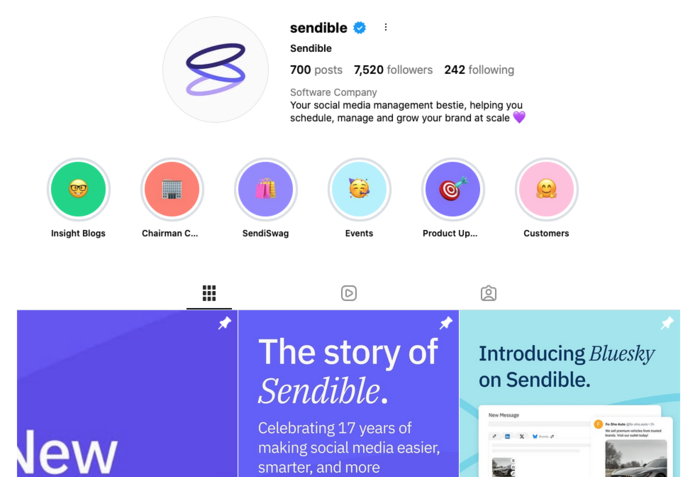 Source: Sendible Instagram
How Instagram Highlights are different from regular Instagram Stories
Think of Stories as your temporary content and Highlights as your permanent, curated shelf. Here are the main ways they’re different:

- Longevity: Stories disappear after 24 hours. Highlights stay pinned until you delete them.
- Placement: Highlights are prominently featured on your profile, ensuring ongoing visibility.
- Purpose: Stories are typically reactive or moment-based. Highlights let you group and present content more deliberately.
Why Instagram Highlights matter for brands and creators
Instagram Highlights act like a visual menu for your brand. New visitors can scroll to learn more about what you offer, what your brand stands for, and why they should follow you.
Highlights are especially powerful because:
- They guide first impressions: Visitors often view highlights before scrolling your feed.
- They improve conversions: Many brands use Highlights to feature product demos, FAQs, testimonials, and sales.
- They create structure: Instead of burying content in a Story archive, Highlights let you group key topics in an easy-to-browse format.
In short, Instagram Highlights give your profile structure, clarity, and strategy, which many brand pages sorely lack.
What are the best ways to use Instagram Highlights for engagement?
Instagram Highlights let brands turn temporary Stories into permanent, browsable content, so it makes sense to use them intentionally.
The key is to think like a visitor: What would someone want to know about your brand within the first 10 seconds of landing on your profile?
Here are some of the most effective (and engaging) ways to use Highlights, with real-world inspiration and ideas you can apply for your business, a client’s company, or a major brand.
#1 Product showcases
Use Highlights to walk people through your products or services, like a visual brochure.
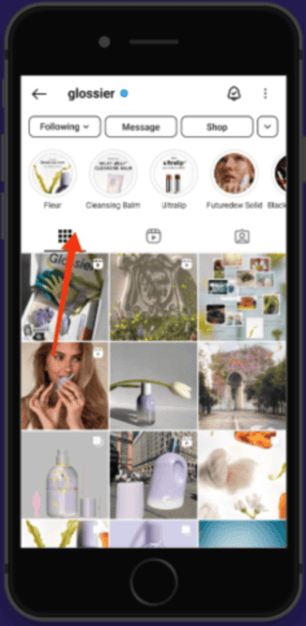
- Example: Glossier uses Highlights to showcase its skincare products, offer application tips, and share before-and-after images, videos, Stories, and Reels.
- Try this: Create a separate Highlight for each product category. Include tutorials, customer results, or user-generated content (UGC) for social proof.
#2 FAQs
Answer your most common customer questions upfront to reduce DMs and build trust.
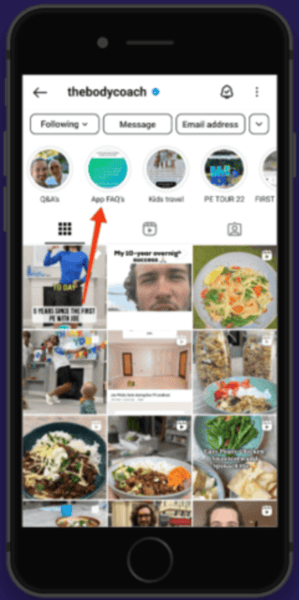
- Example: Many service-based businesses (like Joe Wicks, the body coach) use FAQ Highlights to explain pricing, processes, or policies.
- Try this: Record quick Stories answering top questions. Save them to “FAQs” Highlights so followers always have easy access.
#3 Testimonials and reviews
Social proof is essential in social media marketing: 92% of customers say they trust recommendations from friends and family, and 70% claim they trust reviews and opinions shared online by other customers.
Highlights are the perfect way to make sure your brand benefits from customer reviews, testimonials, and user-generated content (UGC).
-
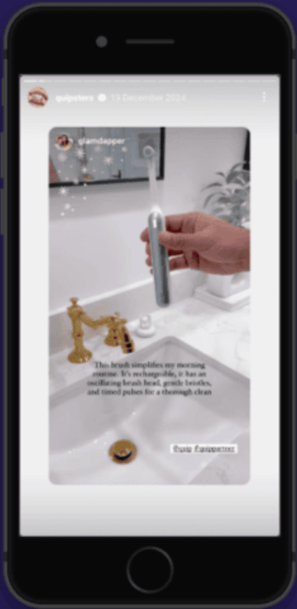
Example: Direct-to-consumer toothbrush startup, Quip, uses a Highlight called “Quipsters” to showcase customer reviews and reactions. It’s a fun, branded way to display social proof while keeping the tone casual and community-focused.
-
Try this: Reshare tagged Stories from happy customers or post screenshots of messages and feedback (with permission). Use a uniform visual frame to keep things cohesive.
#4 Behind-the-scenes (BTS) and Point of View (POV)
Humanising your brand and being authentic helps build stronger and deeper connections with your audience. BTS and POV Stories show your authentic self, while Highlights ensure they’re visible to everyone.
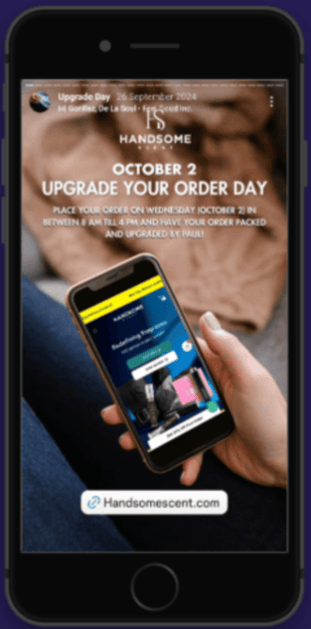
- Example: Fragrance brand, Handsome Scent, frequently films behind-the-scenes packing videos, with a special Black Friday Highlight feature that shows them upgrading orders with extra products during fulfillment.
- Try this: Film a “day in the life” at your business. Capture packaging orders, prepping a new product drop, or casual team moments.
How to Create an Instagram Marketing Strategy for 2026
7 Creative Instagram highlight ideas for brands
Your Highlight covers are prime real estate on your Instagram profile. Like with any social media content type, you can manage them from a social media dashboard.
Highlights appear directly below your bio, often catching visitors' eyes before they scroll to your feed.
Thoughtful cover design can make your profile feel cohesive, professional, and easy to navigate.
Here are 7 creative Highlight cover ideas tailored to different brand goals:
- Minimalist icons in brand colors: Design simple icons for each Highlight category. For example, a shopping cart icon for "Products," a star icon for "Reviews," or a play button icon for "Tutorials." Keep the background consistent (usually your brand's primary color or white/black) and use contrasting icon colors for clarity.
- Text-based covers: Skip the icons entirely and use clean typography with the Highlight name. This works exceptionally well for service-based businesses or personal brands. Choose a legible font and ensure the text is large enough to read at thumbnail size. You can add subtle textures or gradients to keep things visually interesting.
- Photo snippets with branded overlays: Use a small, cropped section of a relevant photo (like a product shot or team member) and overlay it with a semi-transparent color block and text. This approach adds personality while maintaining brand consistency across all covers.
- Monochromatic theme: Create all your covers in shades of a single color, with each Highlight slightly darker or lighter than the next. This creates a gradient effect across your profile that's visually striking and instantly recognisable.
- Custom illustrations: Commission or create simple line drawings or sketches that represent each category. This works particularly well for lifestyle brands, food businesses, or creative agencies looking to showcase their unique brand personality.
- Neon or gradient effects: For brands targeting younger audiences or seeking a bold, modern aesthetic, neon outlines or vibrant gradients can make highlights stand out. Just make sure they're still legible at small sizes.
- Behind-the-scenes candid shots: For a more authentic, less polished approach, use actual photos from your business as Highlight covers. A picture of your workspace for "BTS," a customer using your product for "Reviews," or your team for "About Us" creates warmth and relatability.
How to create an Instagram Highlight: A simple 2-step guide
Creating Instagram Highlights is a strategic way to showcase your best content directly on your profile. If you’re ready to start using them to your advantage, here’s a step-by-step guide to help you create and organise your Highlights effectively.
Step #1: How to Create and save Instagram Stories
Before you can add content to your Highlights, you need to create and save Instagram Stories. Here’s how:
Here’s how:
- Open Instagram:
- Launch the Instagram app.
- Access the Story Camera:
- Tap the “+” icon at the top of your screen.
- Select “Story” from the options at the bottom.
- Need to check if you’re using the right Instagram story dimensions? We can help you.
- Capture or select content:
- To take a photo, tap the white circle at the bottom.
- To record a video, press and hold the white circle.
- To choose existing media, swipe up or tap the gallery icon to select a photo or video from your device.
- Edit your story (optional):
- Add text, stickers, or drawings by using the tools at the top of the screen.
- Share your story:
- Tap “Your Story” at the bottom of the screen to publish.
- Ensure Stories are archived:
- Go to your profile and tap the three horizontal lines (hamburger menu) in the top right corner.
- Select “Settings” > “Privacy” > “Story”.
- Under “Saving”, make sure “Save story to archive” is toggled on
- Instagram automatically archives your Stories after 24 hours. To verify this feature is enabled:
Step #2: How to organise Highlights into categories
Organising your Highlights into specific categories helps visitors navigate your content quickly. Here’s how to create a categorised Highlights:
- Add a new Highlight:
- Tap your profile picture at the bottom of the screen to open your profile.
- Tap the “+” (New) button below your bio and above your posts (it’s marked as “Highlights”).
- Select Stories for the Highlight:
- From the “Stories Archive”, choose the Stories you want to include by tapping them. A checkmark will appear on selected items.
- Once you’ve selected all desired Stories, tap “Next”.
- Name your Highlight:
- Enter a concise, descriptive name for your Highlight (e.g., “Product Demos” or “Customer Reviews”).
- Enter a concise, descriptive name for your Highlight (e.g., “Product Demos” or “Customer Reviews”).
- Choose a cover image:
- Instagram automatically selects a cover image, but you can customise it:
- Tap “Edit Cover.”
- Select a different image from the Stories in the Highlight or upload a custom cover from your gallery.
- Instagram automatically selects a cover image, but you can customise it:
- Finalise the Highlight:
- Tap “Add” (on iOS) or “Done” (on Android) to create the highlight.
- Tap “Add” (on iOS) or “Done” (on Android) to create the highlight.
- Rearrange Highlights (optional):
- To change the order of your Highlights:
- Press and hold the Highlight you wish to move.
- Drag it to a new position.
- To change the order of your Highlights:
- Edit or remove Highlights:
- Tap and hold the Highlight on your profile.
- Select “Edit Highlight.”
- Modify the content as needed.
- Tap and hold the Highlight.
- Choose “Delete Highlight” and confirm.
- To add or remove Stories from an existing Highlight:
- To delete a Highlight:
And that’s it! The process is quick and easy, but taking these steps can significantly enhance your Instagram profile.
In some cases, you might want to create a Highlight without it appearing (even for a moment) as a regular Story. Here is how to do this:
How to add highlights without posting to your story
Although Instagram requires content to exist as a Story before it can be added to Highlights, there's a workaround that lets you add content to Highlights without it appearing in your main Story feed for all your followers to see.
This technique is handy when you want to curate professional, evergreen content for your profile without disrupting your regular Story flow or confusing followers with out-of-context posts.
Here is the 4-step process:
- Create a Close Friends list with only yourself: Go to your profile, tap the hamburger menu, and select "Close Friends." Remove everyone from the list except your own account (you can add yourself by searching for your username). This creates a private Story audience of one.
- Post to Close Friends only: When creating your Story content, instead of posting to "Your Story," select "Close Friends" from the sharing options. This means only you will see the Story, and it won't appear in your followers' feeds.
- Add the Story to Highlights immediately: Once posted to Close Friends, go to your profile and create a new Highlight or add to an existing one. The Story will now be visible in your Highlight, but it never appeared publicly in your Story feed.
- Archive for future use: If you want to prepare multiple Stories for Highlights in advance, you can post them all to Close Friends over several days, let them archive, and then batch-create Highlights when you're ready.
Now, here is how to optimise Instagram highlights.
How to optimise your highlight covers for better engagement
Once your Highlights are live, the goal is to keep them purposeful, polished, and up to date. Think of this section of your profile as a mini homepage. Visitors can scan it to decide if your content is worth exploring.
Here’s how to make every Highlight count.
#1 Design custom covers
Your Highlight covers are one of the first things people see when they visit your profile, so don’t leave them on default:
- Create a branded look: Use your brand colors, icons, or minimalist text to make covers feel cohesive.
- Use Canva or similar tools: Design simple icons (like a camera for BTS or a shopping bag for products) to visually signal what each Highlight includes.
- Upload manually: To change a cover, go to Highlight, tap “More” > “Edit Highlight” > “Edit Cover,” then select a custom image from your gallery.
A clean, consistent look gives your profile a more professional and curated feel, which is especially important if you’re using Instagram to build brand trust.
#2 Update and repurpose regularly
Highlights aren’t set-it-and-forget-it type content, but many brands treat them that way. Outdated Highlights can make your page feel stale, especially if promos, pricing, or policies change.
- Rotate content: Remove Stories that are no longer relevant, and add fresh ones from more recent campaigns or product drops.
- Repurpose seasonal content: Have a holiday sale Highlight? Save it and reuse it next season with updated graphics or offers.
- Use Story performance to guide updates: Review analytics to see which Stories had the most views or taps, and build your Highlights around the best performers.

Use Sendible to boost Instagram engagement, followers, and conversions
Schedule and share a range of Instagram content formats, including Highlights, at optimal times, utilise the right hashtags, and manage your community with Sendible.
The following features make creating content for, scheduling posts, and community management on Instagram so much easier:
- AI Assist: Generate engaging captions, fine-tune your tone, and stay within the character limit with the help of our AI Assist writing support. It also helps you generate ideas so you never have to start from scratch.
- Priority Inbox: Keep up with comments in one place so you never miss an important feedback or urgent comment.
- Social media analytics: Track how different caption lengths or hashtag strategies impact engagement, and adjust based on real data.
- Optimal posting times: Schedule content when your audience is most active to increase visibility and interaction.
14 Essential Instagram Metrics You Need to Track in 2025
With Sendible’s Instagram posting tool, you can focus less on counting characters and more on making them count.
Instagram Highlights FAQs
1. How long do Instagram Highlights last?
They stay on your profile permanently until you delete them.
2. Can you add to Instagram Highlights without posting a story first?
No. All Highlight content must first be posted as a Story before it can be added to a Highlight.
3. Is there a limit to how many Instagram Highlights you can have?
There’s no official limit, but only the first few Highlights are visible before you have to swipe to see the rest. Keeping five to eight categories is a good rule of thumb.
4. Can you see who viewed your Instagram Highlights?
You can only see viewers while the original store is live (within 24 hours). After that, Instagram only shows view counts, not usernames.
5. How do you find Stories to add to Instagram Highlights?
Tap the “+” button on your profile under Highlights to access your Story archive. From there, select any past Stories you’d like to include.
6. How to see who viewed your Highlights after 48 hours
One of the most common questions about Instagram Highlights is whether you can track who's viewing them beyond the initial 48-hour Story window.
Unfortunately, this currently isn’t possible, but understanding how Instagram's viewing metrics work can help you make better strategic decisions.
What you can see: When a Story is active (within its first 48 hours), Instagram shows you a full list of usernames who viewed it. Once you add that Story to a Highlight, you'll continue to see this initial list.
However, Instagram only displays the total view count for any views that happen after the Story expires, not individual usernames.
For example, if your Story had 150 views in the first 48 hours and you can see all those usernames, after you add it to a Highlight and it gets 50 more views over the following week, you'll see a total count of 200 but no names for those additional 50 viewers.
Try Sendible free with 14-day free trial.
Leverage Sendible’s extensive integrations to create, schedule, publish, and engage with your posts seamlessly.

Text copied!